Fossil is a distributed version control system created by D. Richard Hipp, the same person who developed SQLite. Written in 2006, Fossil was designed to support the strict development process inspired by DO-178B, a standard used in aviation software development that emphasizes safety and reliability through thorough documentation and tracking of all changes.
DO-178B is a standard for developing safe and reliable aviation software. It requires thorough documentation and tracking of all changes. Fossil maintains a complete and unchangeable record of every modification made to the code, ensuring that every change is carefully recorded and cannot be altered. This feature makes it easier to review and verify that everything meets the high standards required for safety and reliability.
Additionally, Fossil serves as a software configuration management system, supporting bug tracking, wiki pages, and forum discussions. With its built-in web interface, all these features can be accessed from a web browser, making Fossil a comprehensive solution for managing software projects.
Fossil is written in C and SQL and is released under the BSD-2 license. It is a single, self-contained executable file that can run on any platform without needing to install any dependencies or libraries, unlike Git, which requires dependencies like autotools, curl, zlib, openssl, expat, and libiconv.
Fossil vs Git
Fossil and Git are both distributed version control systems, created around the same time, but they have different philosophies.
Git was built for the Linux Kernel project, specifically for the needs of Linus Torvalds. It is designed to be fast and efficient, making it highly effective for handling large projects with many contributors.
In contrast, Fossil was designed to support the SQLite development process among a small team of developers and to preserve the full history of the project. For example, Fossil does not include a rebase feature, as it goes against the philosophy of preserving history, hence the name “Fossil.”
Fossil is more opinionated than Git, enforcing a strict development process and taking a firm stance on preserving history. This makes Fossil less versatile but more focused.
Unique Features of Fossil
- Autosync and Manual Merge Mode: Fossil has a built-in autosync feature that automatically syncs your repository with a remote server. In Git, you need to manually push and pull changes.
- Show Descendants of a Check-in: Fossil can show all the descendants of a check-in, while Git can only show the ancestors.
- Operations on Multiple Repositories: Fossil supports operations on multiple repositories using the fossil all command.
Getting started with Fossil
First, some terminology:
- Check-in: A snapshot of the project at a particular point in time, containing the changes made since the last check-in.
- Artifact: A file or directory that is part of the project, such as a source code file or an image.
- Artifact ID: A unique identifier for an artifact, which is a SHA1 hash of the content.
- Manifest: A list of all the artifacts in a check-in, along with their artifact IDs.
- Repository: A database that stores all the check-ins, artifacts, and manifests for a project.
- Source Tree: The working directory of the project, containing the files and directories that make up the project.
Typical workflow
- Use the
fossil clonecommand to clone a repository. - Use the
fossil newcommand to create a new repository. - Use the
fossil opencommand to create a new source tree. - Use the
fossil add,fossil rmandfossil mvcommands to add, remove, and move files and directories in the source tree. - Use the
fossil commitcommand to create a new check-in. - Use the
fossil updatecommand to merge in changes from other check-ins. - Use the
fossil pushandfossil pullcommands to sync your repository with other repositories.
Branches can be created as part of a check-in, using the version of the current checkout directory as its basis.
fossil commit --branch my-new-branch-name
Alternatively, you can create a branch from an existing check-in using the fossil branch command.
Private branches
Fossil allows you to create private branches that are not visible to other users.
fossil commit --private
The --private option causes Fossil to put the check-in in a new branch named “private” that is not visible to other users.
That branch will not participate in subsequent clone, sync, push, or pull operations. The branch will remain on the one local repository where it was created.
You can then publish the private changes by merging the private branch into the trunk.
fossil update trunk
fossil merge private
fossil commit
Removing content
If you accidentally push secrets or passwords, Fossil has a feature called “shunning” that allows you to remove a file from the repository’s history. Fossil will refuse to push or pull any shunned artifact.
Using fossil
To create a new repository, use the fossil new command:
➜ fossil new demo.fossil
project-id: df6c0e151fc09f5d6f15c45350ea141debff0139
server-id:  9439c66f3bf3bcad656c1096fe0f9f6a787dc886
admin-user: zain (initial password is "LS56oajNvM")
To open an existing repository, use the fossil open command in a directory where you want to work on the project:
➜  mkdir work-dir
➜  cd work-dir
➜  work-dir fossil open ../demo.fossil
project-name: <unnamed>
repository:   /Users/zain/mscc-demo/demo.fossil
local-root:   /Users/zain/mscc-demo/work-dir/
config-db:    /Users/zain/.config/fossil.db
project-code: df6c0e151fc09f5d6f15c45350ea141debff0139
checkout:     3354ab93dceafb3b0f104152457554478c465a61 2024-06-06 17:39:38 UTC
tags:         trunk
comment:      initial empty check-in (user: zain)
check-ins:    1
Add your files and commit it:
➜  work-dir vim english.py
➜  work-dir fossil add english.py
ADDED  english.py
➜  work-dir cp english.py french.py
➜  work-dir vim french.py
➜  work-dir fossil add french.py
ADDED  french.py
➜  work-dir fossil commit -m "Add french and english"
New_Version: 481c765ec93d225291e76e85803cf3b6925c5129235c63369722a6de68f0015a
Create a new branch and add a file to it.
You can verify the current branch using fossil branch current command and switch branches using fossil checkout branch-name command.
➜  work-dir fossil branch new spanish trunk
New branch: 4197f4976f7e248b6ee4114ab82820429b1cd5b28c3d864e9131aa6423c5d442
➜  work-dir fossil branch current
trunk
➜  work-dir fossil checkout spanish
english.py
french.py
➜  work-dir ls
english.py french.py
➜  work-dir cp french.py spanish.py
➜  work-dir vim spanish.py
➜  work-dir fossil commit -m "Add spanish"
nothing has changed; use --allow-empty to override
➜  work-dir fossil add spanish.py
ADDED  spanish.py
➜  work-dir fossil commit -m "Add spanish"
New_Version: 9204d1a83fa40ecf8625d55a293efdf21655de86fa3a126df950074bdfe8fa1e
Merge the branch back to the trunk:
➜  work-dir fossil checkout trunk
english.py
french.py
➜  work-dir fossil merge spanish
ADDED spanish.py
 "fossil undo" is available to undo changes to the working checkout.
➜  work-dir ls
english.py french.py  spanish.py
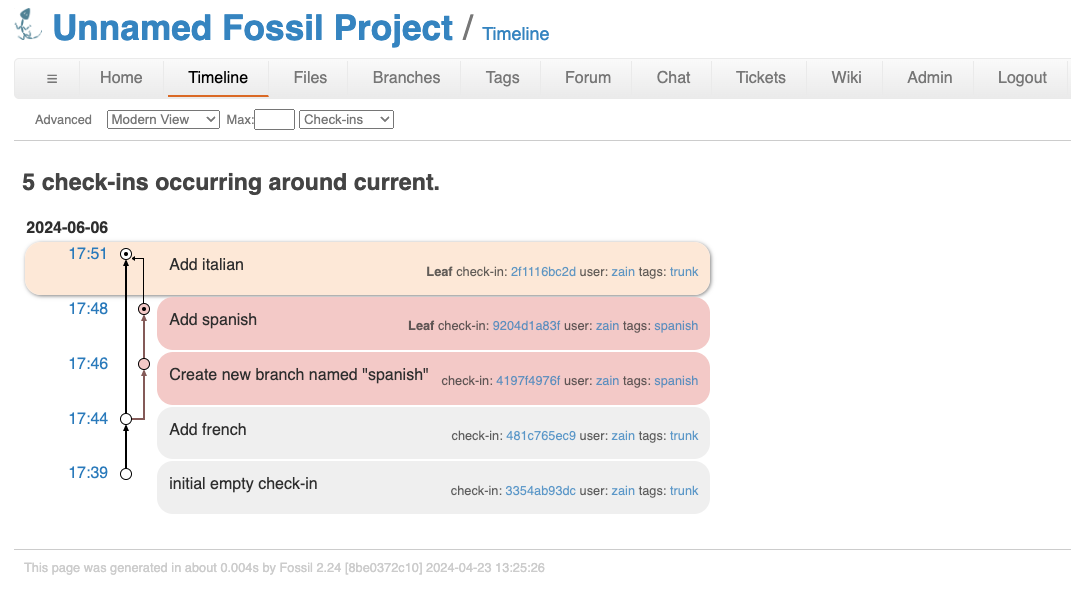
You can view the timeline of the repository using the fossil timeline command and open the web interface using the fossil ui command.
➜  work-dir fossil timeline
=== 2024-06-06 ===
17:48:06 [9204d1a83f] Add spanish (user: zain tags: spanish)
17:46:36 [4197f4976f] Create new branch named "spanish" (user: zain tags: spanish)
17:44:26 [481c765ec9] *CURRENT* Add french (user: zain tags: trunk)
17:39:38 [3354ab93dc] initial empty check-in (user: zain tags: trunk)
+++ no more data (4) +++
➜  work-dir fossil ui
A preview of the web interface:
Multiple-Checkout workflow
With Fossil, you can have multiple checkouts of the same repository on the same machine. This is useful when you want to work on different branches or features simultaneously.
➜  fossil clone https://example.com/repo /path/to/repo.fossil

➜  mkdir -p ~/src/my-project/trunk
➜  cd ~/src/my-project/trunk
➜  fossil open /path/to/repo.fossil    # implicitly opens “trunk”

➜  mkdir ../release
➜  cd ../release
➜  fossil open /path/to/repo.fossil release

➜  mkdir ../my-other-branch
➜  cd ../my-other-branch
➜  fossil open /path/to/repo.fossil my-other-branch

➜  mkdir ../scratch
➜  cd ../scratch
➜  fossil open /path/to/repo.fossil abcd1234

➜  mkdir ../test
➜  cd ../test
➜  fossil open /path/to/repo.fossil 2019-04-01
Now you can work on different branches or features in parallel without affecting each other. One each for:
- trunk
- release: latest public release
- my-other-branch: a feature branch
- scratch: a “scratch” directory for experiments
- test: a directory for testing
The database
Fossil uses an SQLite database to store all the information about the project.
You can verify the type of file using the file command:
➜ file demo.fossil
demo.fossil: SQLite 3.x database (Fossil repository), last written using SQLite version 3046000, file counter 22, database pages 56, cookie 0x28, schema 4, UTF-8, version-valid-for 22
You can explore the database using sqlite3 command:
➜ sqlite3 demo.fossil
SQLite version 3.43.2 2023-10-10 13:08:14
Enter ".help" for usage hints.
sqlite> .tables
attachment   config       mlink        rcvfrom      ticket
backlink     delta        orphan       reportfmt    ticketchng
blob         event        phantom      shun         unclustered
cherrypick   filename     plink        tag          unsent
concealed    leaf         private      tagxref      user
sqlite> select * from user;
1|zain|50f37eab2c7cd6ecdbef79786089472f49a41be7|s|||||1717695578||{}
2|anonymous|8BBD300363814C92|hz||||Anon|||{}
3|nobody||gjorz||||Nobody|||{}
4|developer||ei||||Dev|||{}
5|reader||kptw||||Reader|||{}
sqlite>
You can also use the fossil sql command to run SQL queries on the database.
Online hosting
Fossil repositories can be hosted online using services like Chiselapp. You can view the existing repositories on https://chiselapp.com/repositories.
Documentation
I would recommend reading the Fossil documentation to get a better understanding of how Fossil works and how to use it effectively.